 Pawwall
How to choose an app blocker for iPhone
The right app blocker depends on what happens when you try to open a distracting app. You can choose a limit you may ignore, a hard block, a deliberate pause, or a block with a calm way back in.
The short answer
- Apple Screen Time limits: Pick this built-in option if you want daily limits or scheduled downtime across your Apple devices, and you are comfortable being able to ignore a limit.
- Hard blockers: Pick this approach if you want scheduled restrictions that can be locked so you cannot cancel, bypass, or quit them.
- Pause apps: Pick this approach if you want a breath, reflection, or timed delay before an app opens, with access delayed instead of removed.
- Block plus a calm way back: Pick Pawwall if you want Apple's shield to block chosen apps and app categories, while keeping a short, deliberate route to five minutes of access.
Three ways apps keep you out
The important difference is what happens when you reach for an app.
Apple Screen Time limits
Screen Time is built into iPhone under Settings > Screen Time > App Limits. You can set a daily limit for an app or category. Downtime can block stretches of the day, and Screen Time can sync across Apple devices. It is free. (support.apple.com/guide/iphone/set-up-screen-time-for-yourself-iphbfa595995/ios)
This suits you if you want a basic limit without installing another app. The catch is that you can tap to ignore the limit, so the boundary is easy to cross. (getfinit.com/de/blog/best-app-blockers-iphone)
Hard blockers
Hard blockers focus on making a session difficult or impossible to undo. Opal offers schedules, app limits, and open limits. Its Deep Focus cannot be cancelled or bypassed, while Hard Mode in Opal Pro means you cannot turn Opal off. Opal supports iPhone, Mac, and Android. Its free plan includes one rule. Pro is $99.99 per year, $19.99 per month, or $399 for lifetime access. (opalapp.com; opalapp.com/pricing)
Freedom can block apps, websites, or the entire internet. Its sessions sync across unlimited devices, with scheduling and recurring sessions. Locked Mode prevents quitting. Its App Store listing shows yearly access from $39.99, monthly access from $8.99, and Freedom Forever for $199. (freedom.to; apps.apple.com/us/app/id1269788228)
This suits you if access must stay closed after a session begins. The catch is that a locked session may offer no quick route back when plans change.
Pause apps
Pause apps put time and reflection between the tap and the app. one sec delays access instead of blocking it. Its interventions include a breath, a mirror, and a reflection. Re-Intervention can appear after a set time. It can also block during sessions or schedules, and it works on iOS, Android, and browser extensions. The free tier covers one app, while pro costs $19.99 per year. one sec cites a 57% average drop in app usage from research studies. (one-sec.app; apps.apple.com/us/app/id1532875441)
ScreenZen can place a delay before an app opens. The wait can grow with each open, and you can configure it by day and time. It also offers a strict block for time ranges or after a chosen number of opens, plus locks on settings. Its App Store listing shows only tips as in-app purchases, from $5 to $40. (apps.apple.com/us/app/id1541027222)
This suits you if you want to interrupt an automatic tap while keeping access available. The catch is that a delay is not a block, although both apps also offer blocking options.
Block plus a calm way back
Pawwall sits between a hard blocker and a pause app. It pauses the apps and app categories you choose with Apple's Screen Time, and Apple's own shield is a real block. Its Night focus template runs every day from 22:30 to 07:00, and you can edit it. Immediate focus sessions offer 15, 25, 45, or 60 minutes.
When you want access, Pause with Mau begins with “Let's take one breath first.” It then asks “What would help?” After a short wait, 15 seconds the first time and longer later, you choose “I'm good” or “Open for 5 min.”
This suits you if you want a real app block on your iPhone, with a deliberate route back for the moments that matter.
Compare the approaches
| Screen Time limits | Hard blockers | Pause apps | Block plus a calm way back | |
|---|---|---|---|---|
| How strict | Daily limits and Downtime, but you can tap to ignore the limit | Locked sessions can prevent cancelling, bypassing, or quitting | Usually delays entry, with blocking options in one sec and ScreenZen | Apple's Screen Time shield blocks chosen apps and app categories |
| Way back in | Tap to ignore the limit | May provide no quick way back during a locked session | Complete the breath, reflection, or wait | Take one breath, answer a prompt, wait, then stop or open for 5 minutes |
| Platforms | Apple devices | Opal: iPhone, Mac, Android. Freedom: unlimited devices | one sec: iOS, Android, browser extensions. ScreenZen: on the App Store for iPhone | iPhone |
| Cost model | Free | Opal: free plan with one rule, or Pro monthly, yearly, or lifetime. Freedom: monthly, yearly, or Forever | one sec: free for one app, or yearly pro. ScreenZen: tips listed as in-app purchases | The membership starts with a 7-day trial on the yearly plan. |
| Example apps | Apple Screen Time | Opal, Freedom | one sec, ScreenZen | Pawwall |
Sources for competitor details and prices in this table: opalapp.com/pricing, freedom.to/premium, apps.apple.com/us/app/id1269788228, one-sec.app, apps.apple.com/us/app/id1532875441, and apps.apple.com/us/app/id1541027222, checked 21 October 2026.
Questions to ask before you pick
- Do you need a limit or a firm block? If tapping past a warning is too easy, Screen Time limits may not create enough distance.
- Should access become impossible? A locked session can help when you do not want an escape route, but may be inconvenient if plans change.
- Would a pause be enough? A breath, reflection, or growing delay may interrupt automatic opening without removing access.
- Do you need a controlled way back? Pawwall lets you stop or open an app for 5 minutes after a short pause.
- Are websites part of the problem? Freedom can block websites or the entire internet (freedom.to).
- Which payment model works for you? Options include built-in access, limited free tiers, tips, memberships, subscriptions, and lifetime purchases.
Try it: block Instagram at night
Here is the middle-path approach in Pawwall, using an overnight schedule.
- Choose the Night focus template (every day, 22:30 to 07:00, "Sleep without the scroll").
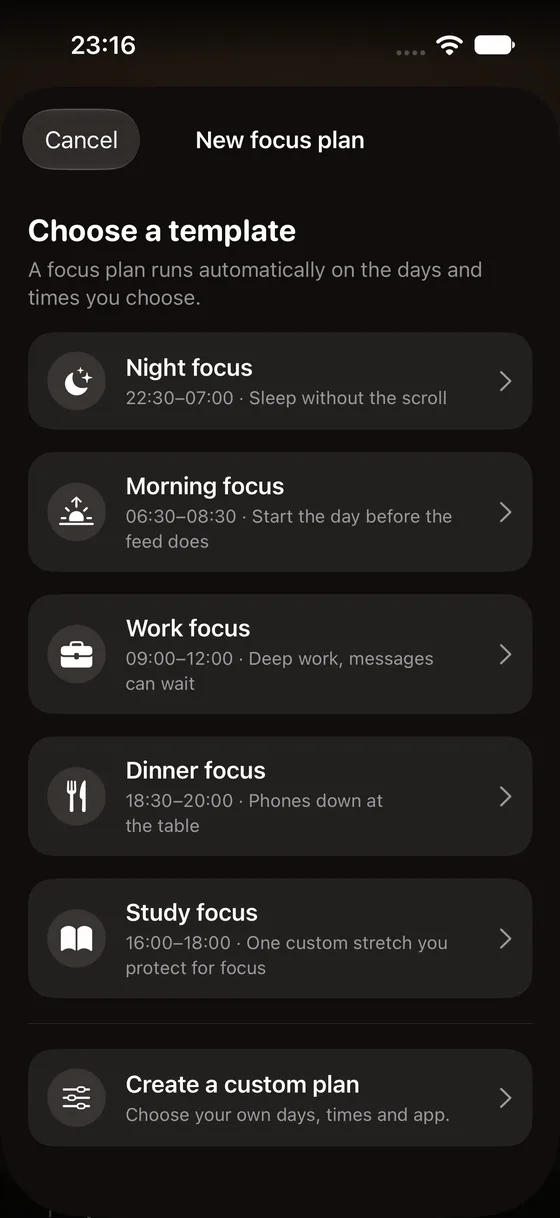
Choose the Night focus template - Review the schedule. Edit the start, end, days or name if needed, then tap Choose apps and pick Instagram.
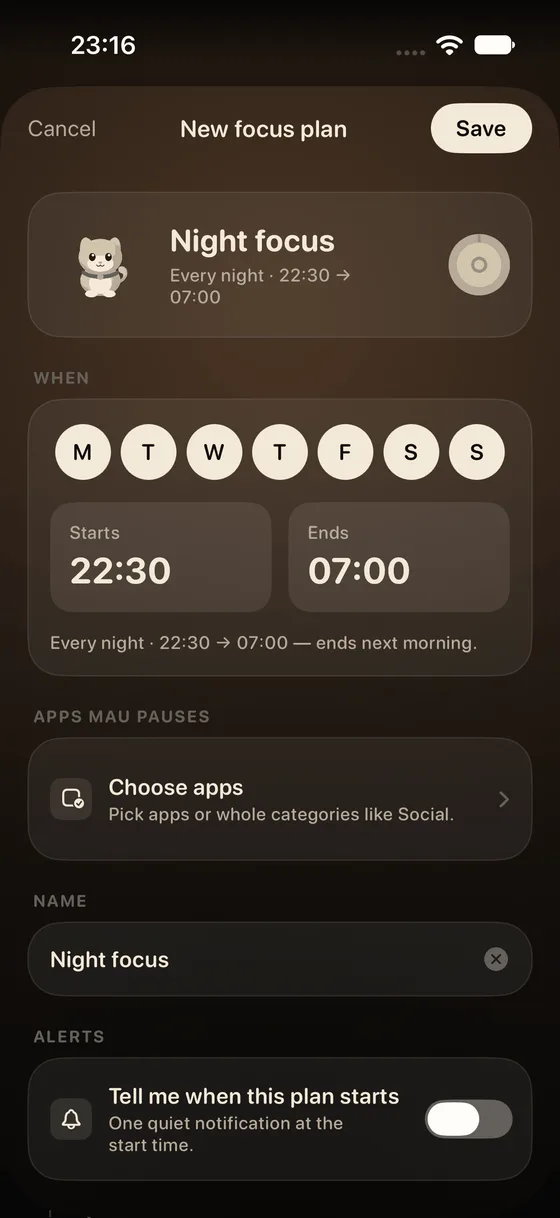
Edit the Night focus schedule - Let the plan become active. Apple's Screen Time shield then blocks the apps and app categories you selected.
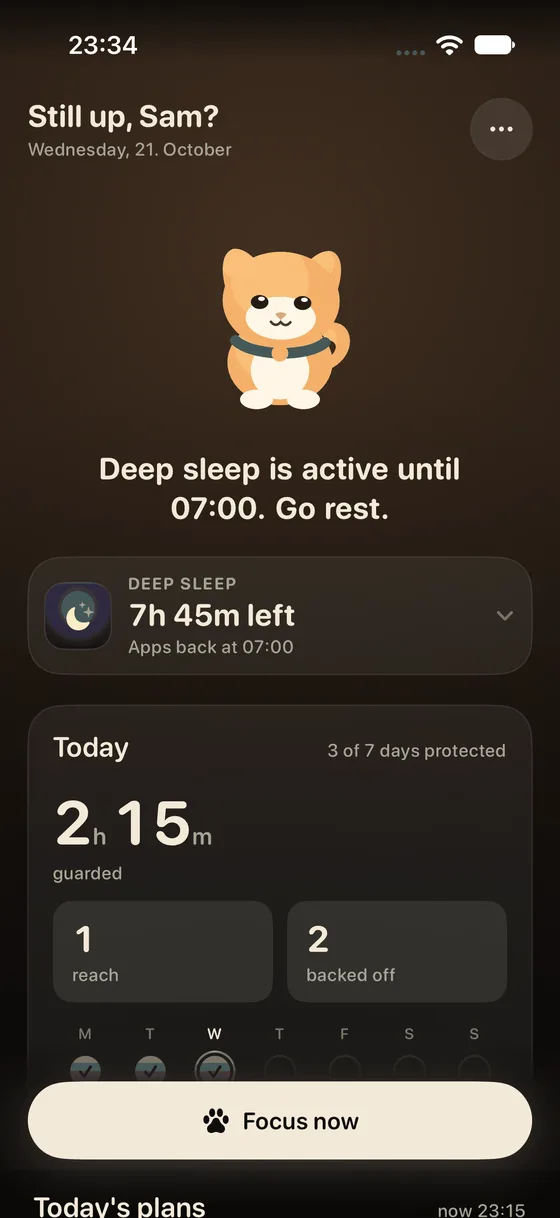
Your night plan, apps back at 07:00 - If you try to return, Pause with Mau first asks you to take one breath, then asks what would help.
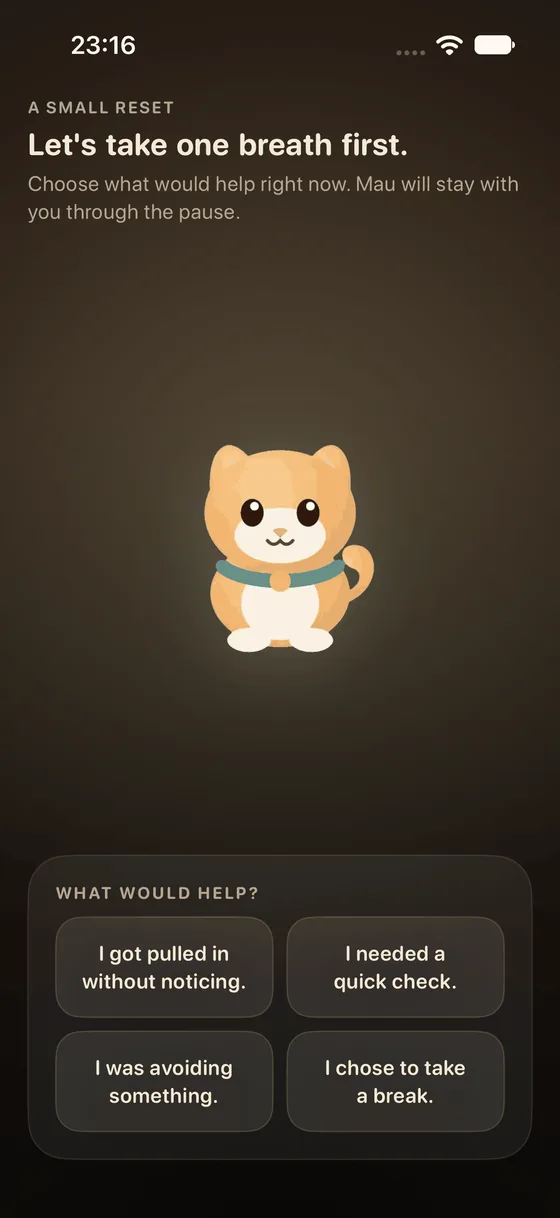
Pause and consider what would help - Wait through the short pause. It lasts 15 seconds the first time and becomes longer later.
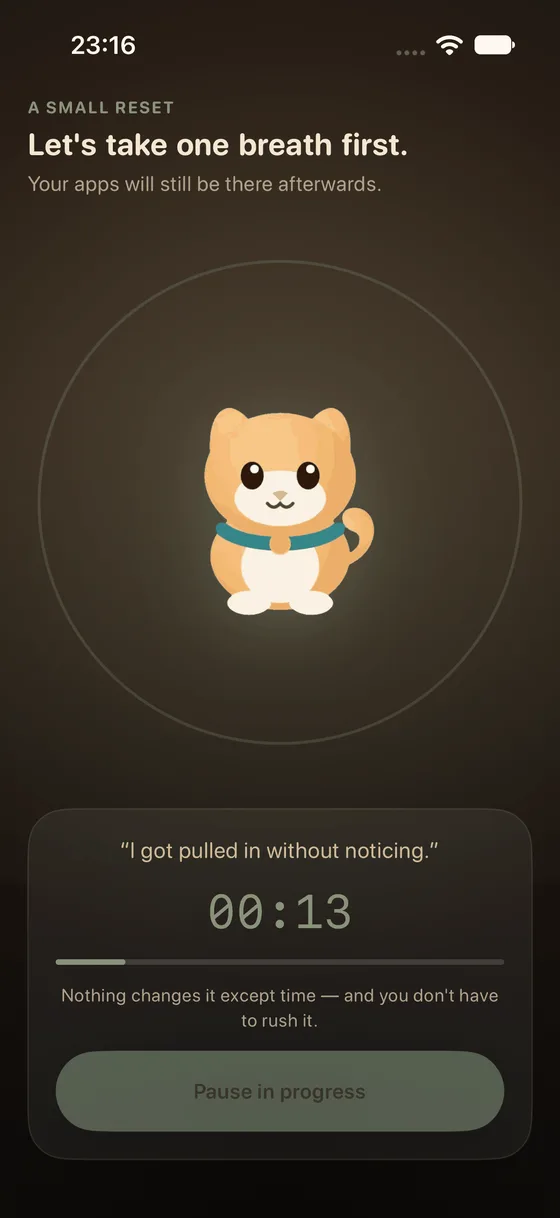
Wait before deciding - Choose “I'm good” to leave the app closed, or “Open for 5 min” for brief access.
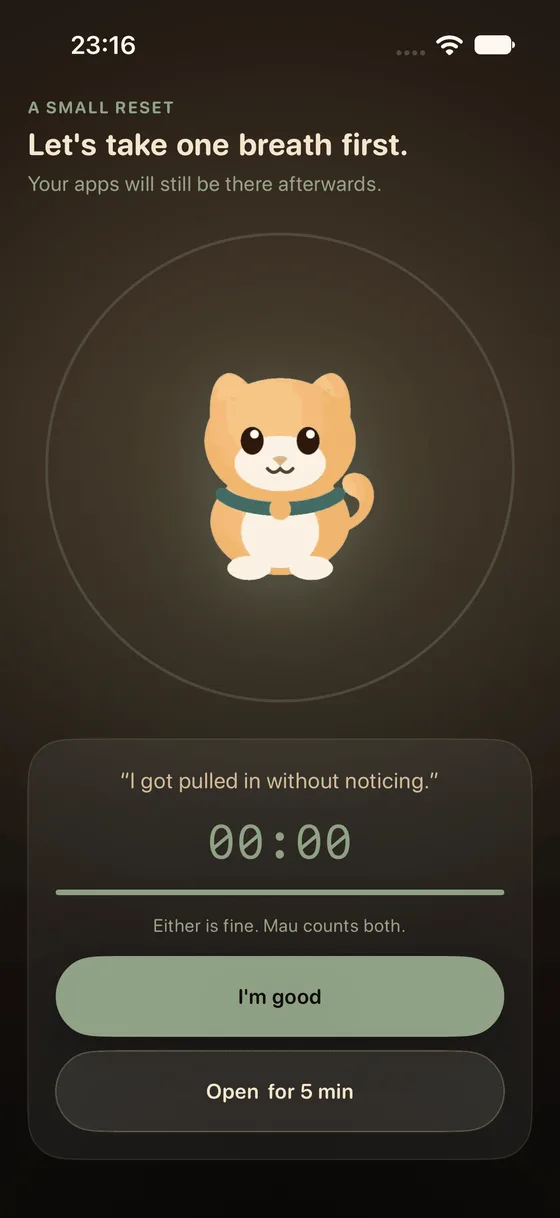
Choose whether to stop or open for 5 minutes
With Screen Time, use App Limits for a daily allowance or Downtime for the night, but you can tap to ignore the limit. With a hard blocker, schedule and lock a session through Opal's Deep Focus or Freedom's Locked Mode. With a pause app, schedule an intervention or delay. one sec and ScreenZen also have blocking options. (support.apple.com/guide/iphone/set-up-screen-time-for-yourself-iphbfa595995/ios; opalapp.com; freedom.to; one-sec.app; apps.apple.com/us/app/id1541027222)
Why people choose Pawwall
- A real block, with Apple's own shield. Pawwall pauses the apps and app categories you choose with Apple's Screen Time.
- Plans that run themselves. Night focus runs every day from 22:30 to 07:00 unless you change it; Morning, Work, Dinner and Study templates are ready too.
- A calm way back in. Pause with Mau: "Let's take one breath first.", "What would help?", a short wait, then "I'm good" or "Open for 5 min".
- Private by design. The apps you pick and your Screen Time data stay on your iPhone. Apple's Screen Time gives Pawwall only private tokens, never app names or your usage.
- No account, no ads. The membership starts with a 7-day trial on the yearly plan.
Who Pawwall is for
- People who want a firm block at night or during focus time on their iPhone.
- People who tried limits they could ignore with one tap, or hard locks they ended up deleting.
- People who want to stay in charge, with a pause that makes them think before they open an app.
Sources and last checked
- https://opalapp.com/pricing
- https://opalapp.com/
- https://freedom.to/premium
- https://freedom.to/
- https://apps.apple.com/us/app/id1269788228
- https://one-sec.app/
- https://apps.apple.com/us/app/id1532875441
- https://apps.apple.com/us/app/id1541027222
- https://support.apple.com/guide/iphone/set-up-screen-time-for-yourself-iphbfa595995/ios
- https://getfinit.com/de/blog/best-app-blockers-iphone
- https://apps.apple.com/app/id6796812465
All sources checked 21 October 2026.
FAQ
Does iPhone have a built-in app blocker?
Screen Time is built in. App Limits sets daily limits by app or category, while Downtime blocks stretches of the day, but you can tap to ignore the limit. (support.apple.com/guide/iphone/set-up-screen-time-for-yourself-iphbfa595995/ios)
What is the difference between a pause and a block?
A pause delays access with an intervention such as a breath, reflection, or wait. A block stops access, though the method for getting back in depends on the product.
Does Pawwall use Apple's Screen Time?
Yes. Pawwall pauses apps with Apple's Screen Time, and the block you see is Apple's own shield screen.
Can I schedule Pawwall overnight?
Yes. The Night focus template runs every day from 22:30 to 07:00, and you can change the times, days and name.
What happens if I need a blocked app in Pawwall?
Pause with Mau asks you to breathe and consider what would help. After a short wait, you can choose “I'm good” or “Open for 5 min.”
Does Pawwall need an account?
No. Pawwall has no account and no ads.
Does Pawwall see which apps I choose?
The apps you pick and your Screen Time data stay on your iPhone. Apple's Screen Time gives Pawwall only private tokens, never app names or your usage.